So, you’ve unboxed your brand-new Amazon Firestick and you’re ready to explore a world of on-demand shows, blockbuster movies, live sports, and maybe even a little IPTV magic. But then the question hits: “Where do I even start?” Don’t worry—you’re not alone.
Setting up your Firestick for the first time can feel overwhelming, especially if you’re not super tech-savvy. The good news? It’s actually much easier than you think. In this step-by-step beginner’s guide, you’ll learn exactly how to set up Firestick, connect it to your TV, configure WiFi, sign in to your Amazon account, and start streaming in just minutes.
Step-by-Step Firestick Setup Guide
Setting up a Firestick involves plugging it into your TV’s HDMI port, connecting to WiFi, signing into your Amazon account, and installing streaming apps. The entire process usually takes 10–15 minutes for first-time users.
- Plug the Firestick into your TV
- Insert it into an available HDMI port.
- Use the included USB cable and power adapter (recommended instead of TV USB).
- Insert it into an available HDMI port.
- Turn on your TV
- Switch to the correct HDMI input.
- Switch to the correct HDMI input.
- Pair the Firestick remote
- Insert batteries.
- Hold the Home button for 10 seconds if pairing doesn’t start automatically.
- Insert batteries.
- Select your language
- Connect to WiFi
- Choose your network.
- Enter your password carefully.
- Choose your network.
- Sign in to your Amazon account
- Use existing credentials or create a new account.
- Use existing credentials or create a new account.
- Finish setup
- Follow on-screen instructions to complete device optimization.
- Follow on-screen instructions to complete device optimization.
How Do You Connect Firestick to WiFi?
To connect your Firestick to WiFi, go to Settings > Network, select your WiFi network, and enter your password. A stable connection is essential for smooth streaming.
Tips for Stronger WiFi Connection
- Place the router near the TV.
- Avoid thick walls between router and device.
- Restart router if connection fails.
- Use 5GHz WiFi for faster speeds if available.
Minimum Internet Speed for Firestick
- SD streaming: 5 Mbps
- HD streaming: 10 Mbps
- 4K streaming: 25 Mbps
How Do You Install Apps on Firestick?
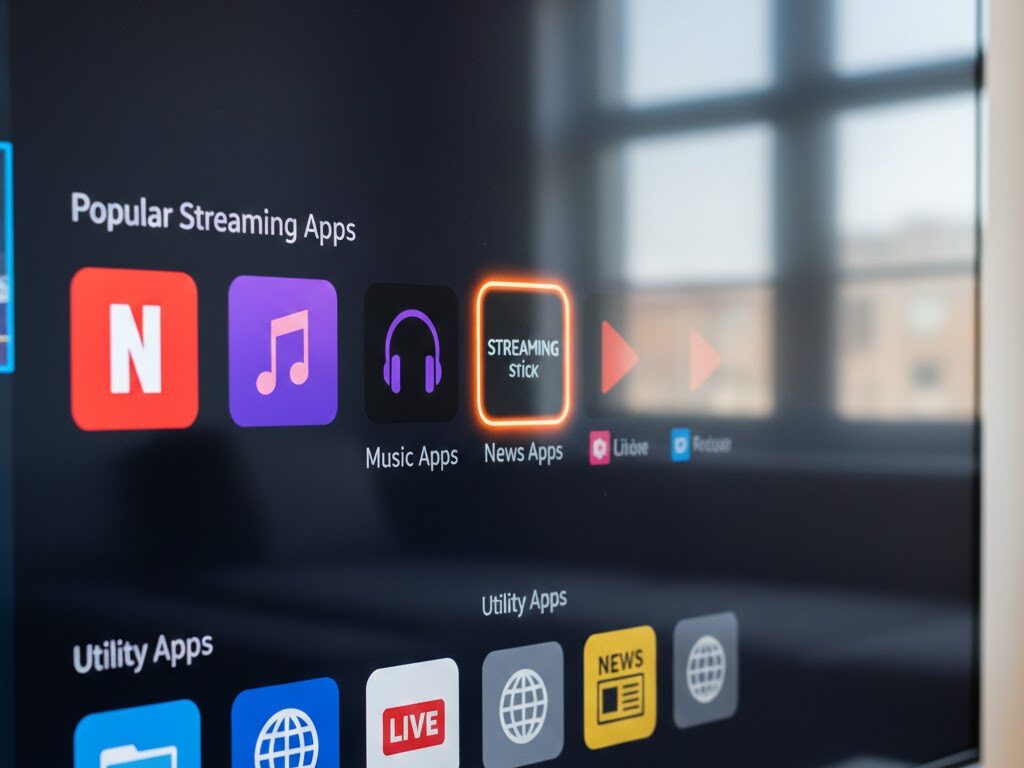
You can install apps directly from the Amazon App Store by searching from the home screen. Simply select the app and click Download.
How to Download Apps on Firestick
- Go to Find > Search
- Type the app name.
- Select the app.
- Click Download or Get.
Open after installation.
Best Apps for Firestick Beginners
- Popular streaming platforms
- Music apps
- News apps
- Utility apps (file managers, browser)
What Are the Best Firestick Settings for Streaming Quality?
Optimizing Firestick settings improves streaming quality and reduces buffering. Adjust video resolution, clear app cache, and ensure a strong WiFi signal.
Recommended Firestick Settings
- Go to Settings > Display & Sounds
- Set resolution to Auto (Up to 4K) or 1080p if the internet is slower.
- Turn on Match Original Frame Rate
- Restart device weekly.
- Clear cache from unused apps.
How to Clear Cache on Firestick
- Settings > Applications
- Manage Installed Applications
- Select app
- Click Clear Cache
Why Is My Firestick Not Working and How Do I Fix It?
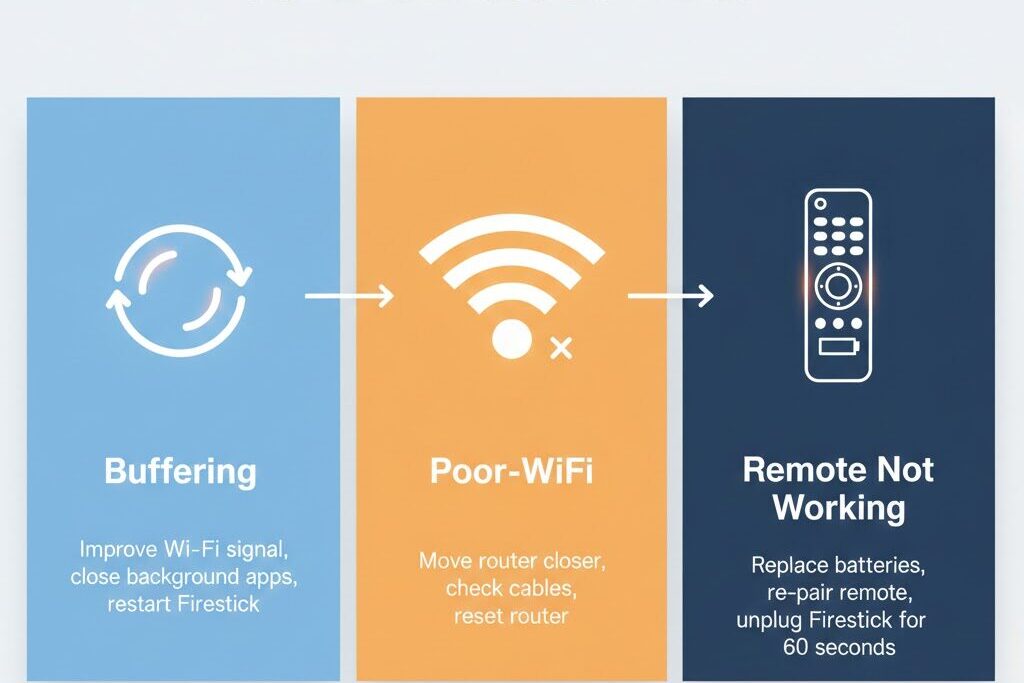
If your Firestick isn’t working, it’s usually due to WiFi issues, outdated software, or app cache overload. Restarting the device solves most beginner problems.
Quick Fix Checklist
- Restart Firestick (Settings > My Fire TV > Restart)
- Restart WiFi router
- Check HDMI connection
- Replace remote batteries
- Update software (Settings > My Fire TV > About > Check for Updates)
How to Reset Firestick Step by Step
- Go to Settings
- Select My Fire TV
- Choose Reset to Factory Defaults
- Confirm reset
Use reset only if other fixes fail.
Troubleshooting Common Issue Fixes:
Practical Examples for Beginners
Setting Up Firestick on Smart TV
Works with any TV that has an HDMI port, including older models.
Using Firestick in a Hotel
Connect to hotel WiFi through browser authentication screen.
Improving Streaming on Slow Internet
Use Ethernet adapter for stable connection.
Legal & Safety Considerations
When using Firestick:
- Download apps only from the official Amazon App Store.
- Avoid unofficial or unknown sources.
- Keep your device updated for security patches.
- Use secure, password-protected WiFi networks.
- Enable parental controls if needed.
Using official apps ensures safer streaming and better device performance..
Installing Must-Have Streaming Apps
To start streaming, download apps like:
- Netflix, Prime Video, Hulu, Disney+
- YouTube, Plex, Spotify
- Xtreme HD IPTV for live TV options
Go to Find > Search, type the app name, and install. Done.
Using Voice Commands with Alexa
Press and hold the microphone button on your remote and say things like:
- “Play Stranger Things on Netflix”
- “Open YouTube”
- “What’s the weather today?”
It’s your built-in personal assistant—lazy Sundays just got smarter.
Organizing Your Home Screen for Efficiency
Too many apps? Pin favorites:
- Press ☰ (Menu) on the app
- Select Move or Move to Front
This keeps your top apps just a click away.
Parental Controls and Privacy Settings
To keep things family-safe:
- Settings > Preferences > Parental Controls
- Set a PIN for purchases and mature content
For privacy:
- Disable ad tracking under Privacy Settings
- Turn off Data Monitoring
Boosting Performance with Easy Tweaks
Speed things up by:
- Disabling auto-playing previews
- Clearing cache of unused apps
- Uninstalling bloatware (preloaded apps you don’t use)
Adding a VPN for Privacy and Access
Want private streaming and access to global content?
- Install a VPN like ExpressVPN or Surfshark from the Appstore
- Open the app, choose a server, and connect
Now you can stream geo-blocked content and stop ISP throttling.
Final Thoughts
Setting up Firestick step by step for beginners is simple when you follow the right process. From connecting WiFi to installing apps and optimizing streaming quality, this guide covers everything you need to start confidently.
In less than an hour, you’ve transformed your TV into a smart hub bursting with content. All it took was plugging it in, following a few prompts, and unleashing your inner smart streamer.
Welcome to the Next Streaming future. Pop some popcorn and start exploring.
Frequently Asked Questions (FAQ)❓
1. Can I use Firestick without an Amazon account?
No, you need to sign in with an Amazon account to activate and use the device.
2. Do I need a smart TV to use Firestick?
Nope! Any TV with an HDMI port will do. The Firestick makes it smart.
3. How do I install third-party apps on Firestick?
Enable Apps from Unknown Sources under Settings > My Fire TV > Developer Options. Then use Downloader app.
4. Is Firestick compatible with 4K TVs?
Yes, but only the Fire TV Stick 4K and Fire TV Stick 4K Max support 4K resolution.
5. What internet speed do I need?
At least 10 Mbps for HD, and 25 Mbps for 4K streaming.
Leave a Reply
You must be logged in to post a comment.