

Travelling with a FireStick can make hotel nights much more enjoyable. Instead of relying on whatever channels the hotel provides, you can use your own streaming apps and watch the services you normally use at home.
The good news is that connecting a FireStick to hotel Wi-Fi is usually straightforward. Many hotel networks use a captive portal, which is a web-based sign-in page where guests may need to accept terms, enter a room number, or provide another form of authentication. Fire TV has supported captive-portal connections for hotel and similar networks for years.
However, hotel networks are not all configured the same way. Some work immediately, while others may require help from the hotel’s Wi-Fi support team or a travel router.
This guide explains the easiest way to connect your FireStick, what to do when the hotel login page does not appear, and how to troubleshoot common problems.
Quick Setup
To connect a FireStick to hotel Wi-Fi:
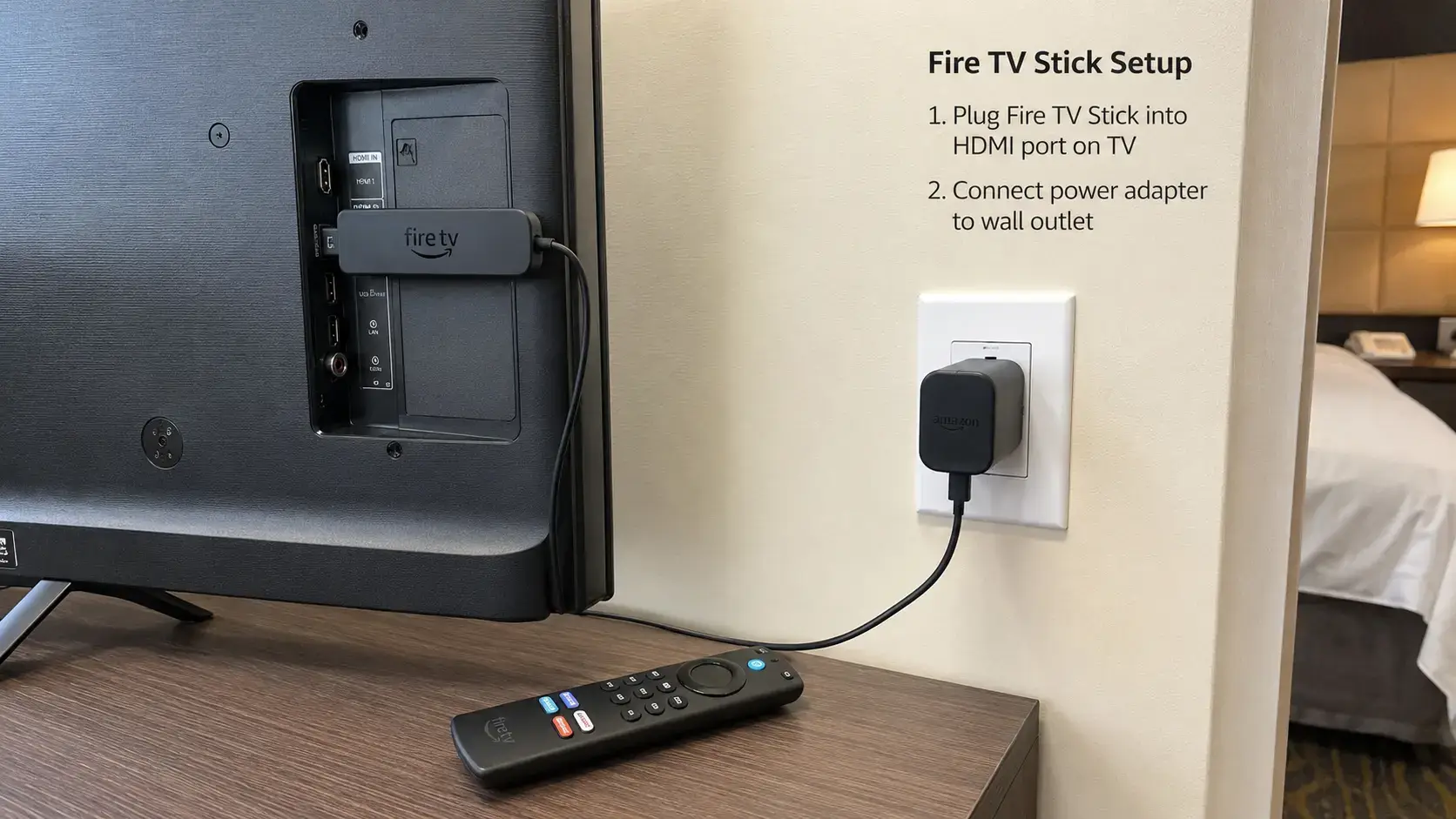
- Plug the FireStick into an available HDMI port.
- Connect the FireStick to power.
- Switch the hotel TV to the correct HDMI input.
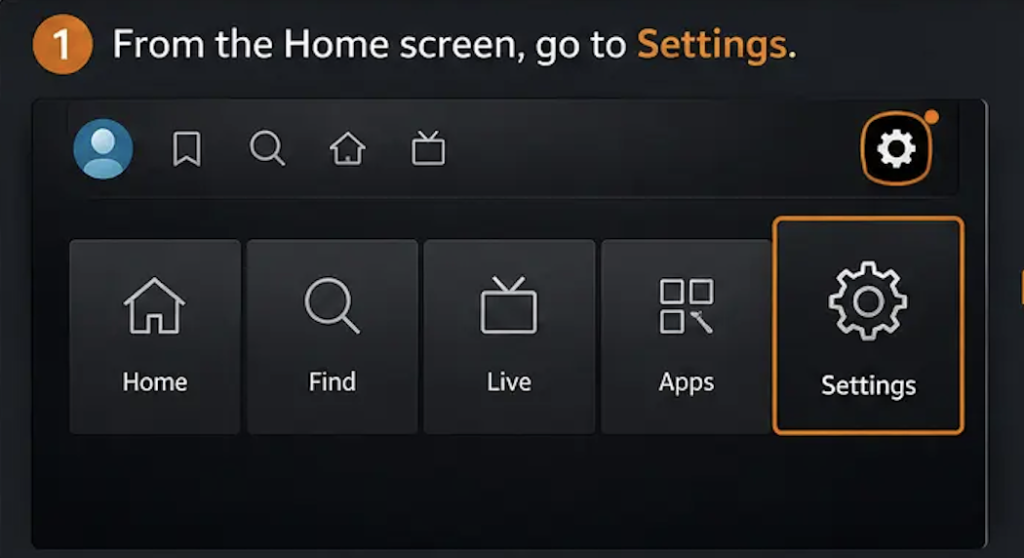
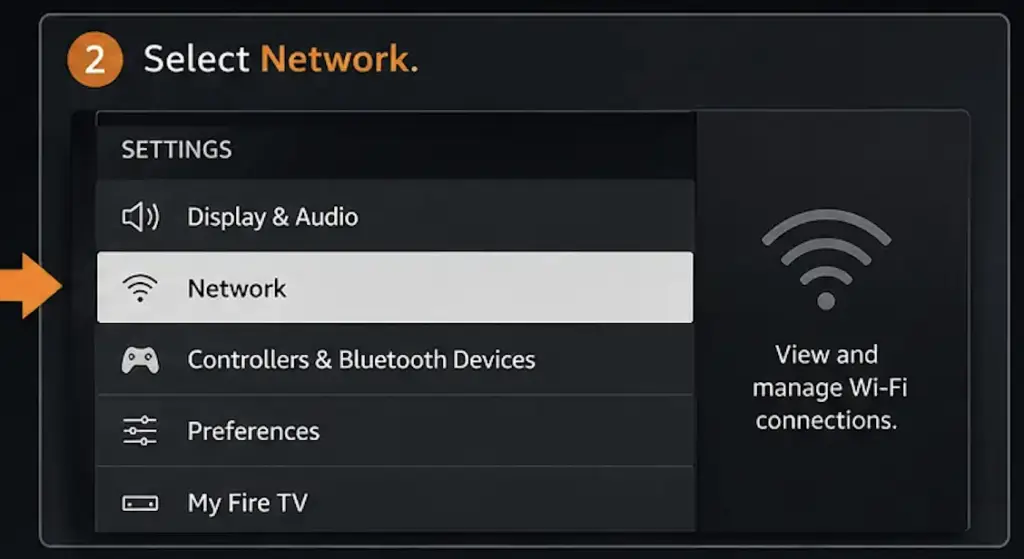
- On the FireStick, open Settings > Network.
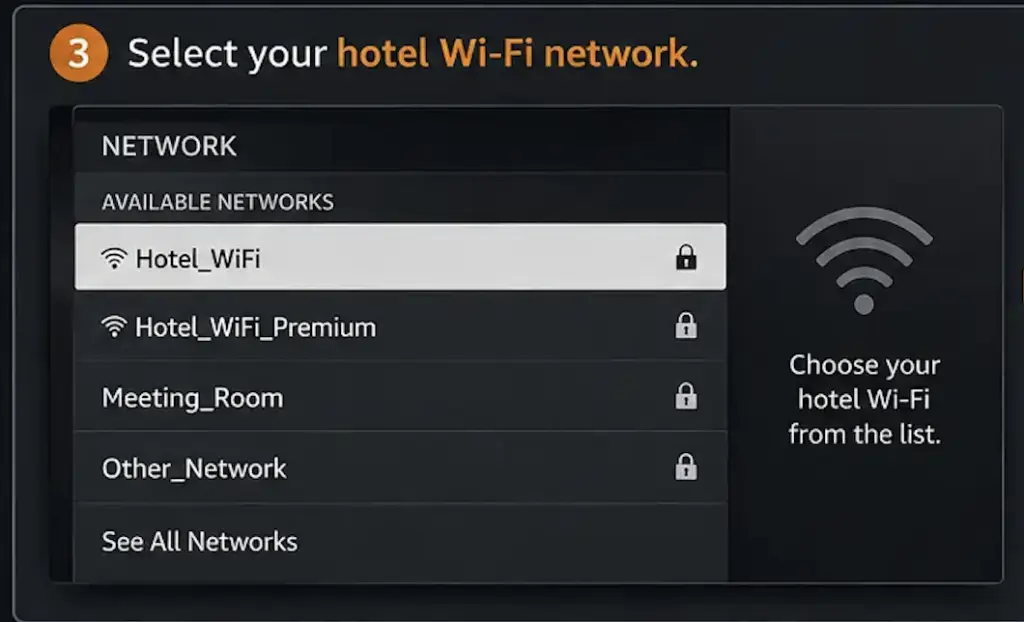
- Select the hotel’s Wi-Fi network.
- Enter the Wi-Fi password if required.
- If a hotel sign-in page appears, follow the on-screen instructions.
- Test the connection by opening a streaming app.
If the hotel’s login page does not work on the FireStick, ask the hotel whether they can authorize the device or provide instructions for connecting streaming devices. A travel router can also be a useful solution for frequent travelers.
What You Need to Use a FireStick in a Hotel
Before leaving home, pack a few things that can save you a lot of frustration.
Your FireStick and remote
Bring the FireStick, its remote, batteries, HDMI extension if you use one, and the supplied power cable and adapter.
The remote is especially important because hotel TVs do not always make it easy to control external HDMI devices.
Your streaming account details
Make sure you know your login details for the services you plan to use.
For security, avoid saving passwords unnecessarily on a hotel device or leaving accounts signed in after you check out.
Your phone
Keep your phone nearby. It can help you:
- Check the hotel’s Wi-Fi instructions
- Contact hotel support
- Authenticate the network if required
- Troubleshoot the connection
- Use mobile data as an alternative connection when appropriate
Optional: a travel router
If you travel frequently, a small travel router can make hotel networking easier.
Instead of connecting every device individually to a hotel’s network, the router can create your own local Wi-Fi network. The exact setup depends on the router and the hotel’s network.
How to Connect Your FireStick to Hotel Wi-Fi
Start with the simplest method. You do not need a travel router or other workaround unless the normal connection fails.
Step 1: Connect the FireStick to the TV
Plug the FireStick into an available HDMI port on the hotel TV.
Then connect its power cable to the supplied power adapter and plug the adapter into a suitable power outlet.
Using the included power adapter is preferable to relying on a TV USB port, especially if the TV’s USB port cannot provide enough power.
Step 2: Select the Correct HDMI Input
Use the hotel remote or the TV’s controls to select the HDMI input where you connected the FireStick.
You may see options such as:
- HDMI 1
- HDMI 2
- HDMI 3
If you cannot change the input, the hotel may have restricted access to the TV’s settings or connected its own hospitality system.
In that situation, ask the front desk for assistance rather than disconnecting equipment you do not recognize.
Step 3: Open Network Settings
Once the FireStick is displaying its home screen, open:
Settings > Network
Fire TV’s network settings allow you to select available wireless networks. Amazon’s Fire TV documentation also uses the Network settings to identify the active connection.
Step 4: Select the Hotel Wi-Fi
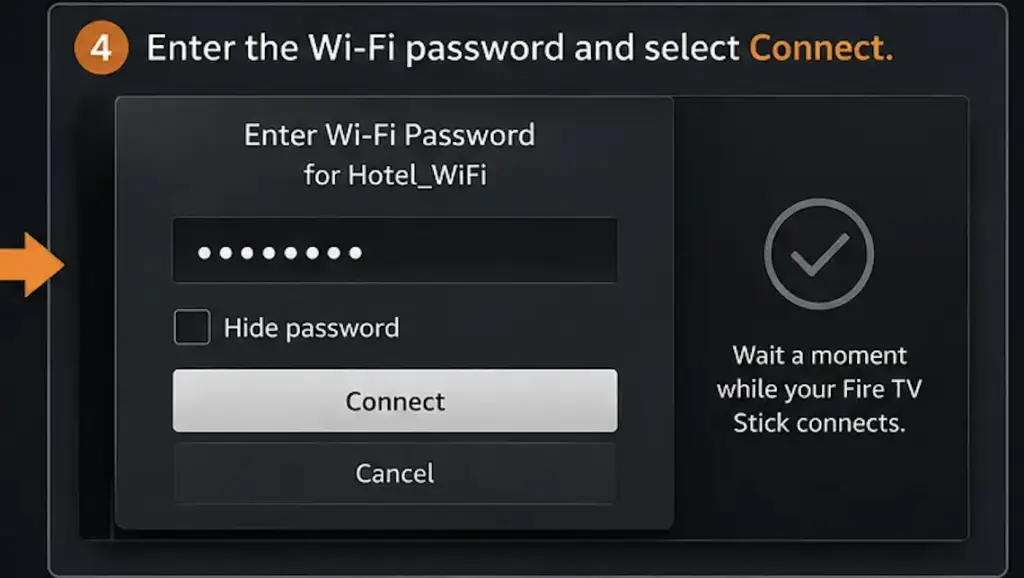
Find the hotel’s Wi-Fi network in the list.
Check the network name carefully. Hotels sometimes have several networks, such as separate guest, conference, or staff networks.
Use the network information supplied by the hotel rather than guessing.
What Is a Captive Portal?
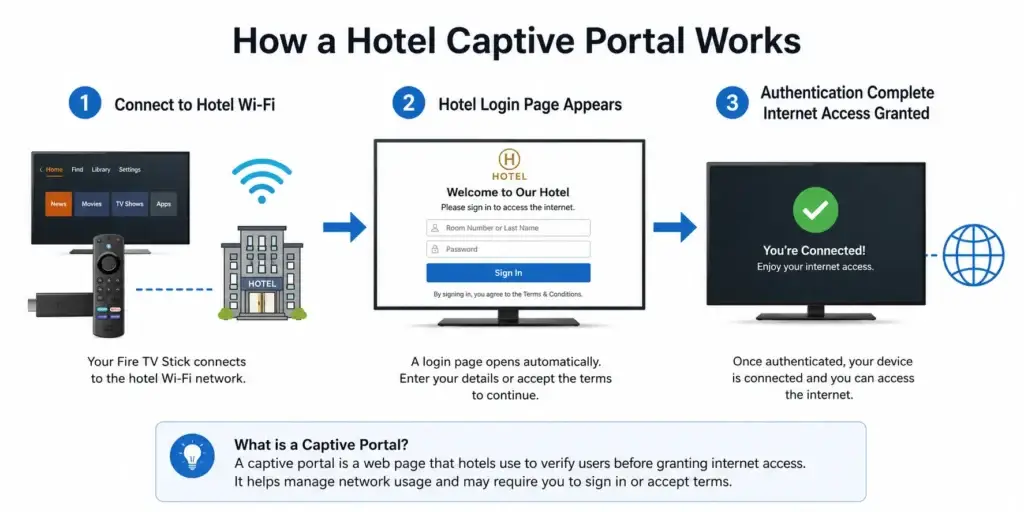
A captive portal is a web page that appears before a Wi-Fi network gives your device normal internet access.
You may have encountered one when using Wi-Fi at:
- Hotels
- Airports
- Cafés
- Universities
- Hospitals
- Conference centers
For example, your phone might connect to the Wi-Fi network but immediately open a page asking you to accept the hotel’s terms.
The same basic process can happen on a FireStick.
The important point is that a hotel Wi-Fi network can require more than just entering a Wi-Fi password.
What If the Hotel Login Page Does Not Appear?
This is one of the most common problems travelers encounter.
First, give the FireStick a moment after connecting to the network.
If the sign-in process still does not appear, try these steps.
1. Disconnect and reconnect
Go back to:
Settings > Network
Select the hotel network and reconnect.
2. Restart the FireStick
Unplug the FireStick’s power adapter, wait about a minute, and reconnect it.
Amazon recommends restarting the device as part of basic Fire TV connectivity troubleshooting.
3. Check the hotel instructions
Some hotels provide specific instructions for connecting smart TVs and streaming devices.
Look at the information given during check-in or contact the hotel’s internet support team.
4. Ask the hotel to authorize the device
Some hotel networks have device-management systems that may require staff to approve or register a device.
If your FireStick connects to the Wi-Fi but cannot obtain normal internet access, contact the hotel’s Wi-Fi support or front desk.
Amazon staff have also advised hotel guests with captive-portal problems to contact the hotel’s IT administrator when the third-party login system is preventing the connection.
Can You Use Your Phone as a Hotspot?
Yes, but there is an important distinction.
A normal mobile hotspot usually shares your phone’s cellular data connection.
That can be useful if:
- The hotel Wi-Fi is unreliable
- The hotel does not allow your FireStick to connect
- You have sufficient mobile data
- Your mobile provider permits hotspot use
However, you should not assume that every phone can connect to hotel Wi-Fi and then automatically rebroadcast that same Wi-Fi connection to your FireStick.
The ability to share an existing Wi-Fi connection varies by device and operating system.
If you specifically want to use the hotel’s internet connection through your own Wi-Fi network, a travel router is often the more predictable solution.
Using a Travel Router With a FireStick
A travel router can be particularly useful if you regularly travel with multiple devices.
The basic idea is simple:
Hotel Wi-Fi → Travel Router → Your FireStick
The router connects to the hotel’s internet connection and creates a separate Wi-Fi network for your devices.
Your FireStick can then connect to your travel router rather than having to deal directly with each hotel’s Wi-Fi setup.
Some travel routers can also handle captive-portal authentication, although the exact process varies by manufacturer and hotel network.
A travel router can help when you want to connect several devices, such as:
Why travelers like travel routers
- Game console
- FireStick
- Laptop
- Tablet
- Phone
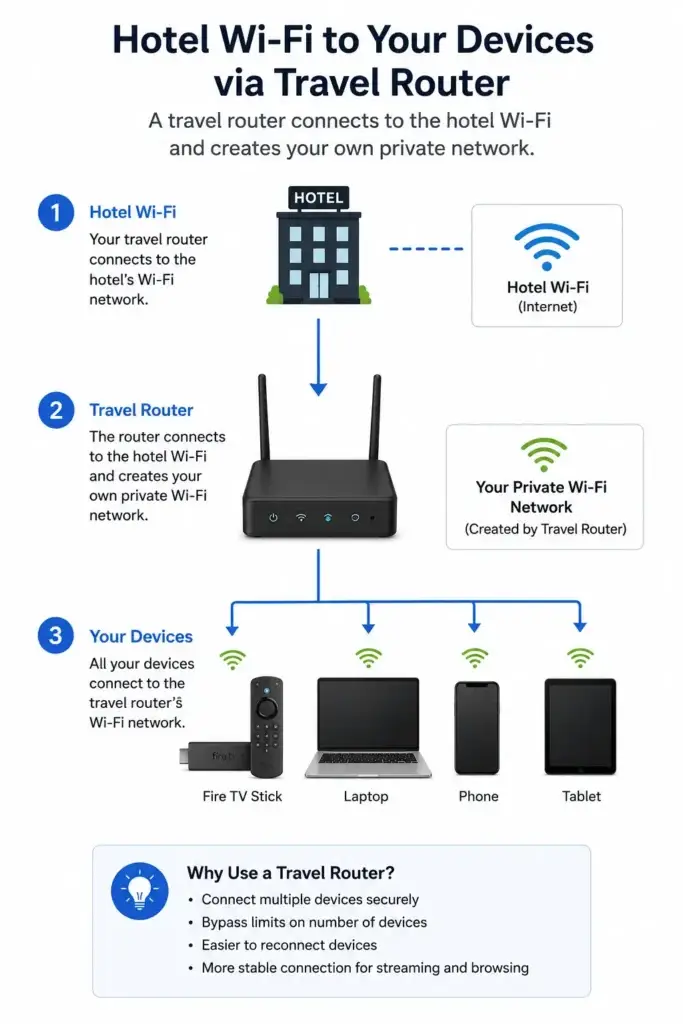
It can also make your setup more consistent because your personal devices can continue connecting to the same router network.
However, a travel router does not guarantee that every hotel network will work. Hotels may restrict devices, require browser-based authentication, or block certain network configurations.
What If the Hotel Blocks Streaming Devices?
Some hotel networks have restrictions on connected devices or require additional authentication.
Before trying to work around those restrictions, check the hotel’s terms or ask the Wi-Fi support team.
Do not rely on MAC-address spoofing or other methods designed to bypass the hotel’s network controls.
A better approach is to ask whether the hotel supports personal streaming devices and whether they can authorize your FireStick.
This is both safer and more reliable.
FireStick Connected to Wi-Fi but No Internet
Sometimes the FireStick appears connected to Wi-Fi but streaming apps still cannot access the internet.
Try this sequence:
Restart the FireStick
Disconnect its power for about a minute and reconnect it.
Reconnect to the hotel network
Open:
Settings > Network
Select the hotel network again.
Check the hotel’s Wi-Fi status
Connect your phone to the same hotel network.
If your phone also cannot access the internet, the problem may be with the hotel network rather than the FireStick.
Contact hotel support
Ask whether:
The hotel uses a separate network for streaming devices
FireStick Wi-Fi Is Slow at the Hotel
A FireStick can connect successfully and still have poor streaming performance.
Hotel Wi-Fi may be shared by many guests, so performance can vary throughout the day.
Try these practical steps:
- Move the FireStick away from obvious sources of interference where possible.
- Use the hotel’s strongest available Wi-Fi network.
- Restart the FireStick if it has been running for a long time.
- Avoid unnecessary downloads while streaming.
- Lower video quality if your connection cannot maintain HD or 4K playback.
- Test the connection at a different time if the network is heavily congested.
Should You Stream in 4K on Hotel Wi-Fi?
Not necessarily.
4K video generally requires more bandwidth than lower-resolution streaming.
If 4K playback constantly buffers, try a lower quality setting.
For a hotel stay, stable HD playback may provide a better experience than repeatedly attempting 4K on an overloaded network.
The right setting depends on the streaming service, video title, FireStick model, and available bandwidth.
Can You Use a VPN on a FireStick at a Hotel?
A VPN can be useful when you are using public or shared networks and want to encrypt your internet traffic between the FireStick and the VPN service.
However, a VPN is not a solution for every hotel Wi-Fi problem.
For example, a VPN cannot fix a FireStick that has not successfully completed the hotel’s captive-portal login.
You normally need to establish internet access first before the VPN can connect.
Also, streaming services may restrict or block VPN connections, and using a VPN does not automatically give you access to every country’s content library.
Always check the terms of the streaming service and the VPN provider before using it.
Do You Need a VPN for Hotel Wi-Fi?
Not necessarily.
A VPN is a privacy tool, not a requirement for connecting a FireStick to hotel Wi-Fi.
If you choose to use one, install the VPN application from a legitimate source and make sure it supports your particular Fire TV device.
Do not choose a VPN solely because an article claims that it “unlocks everything.”
Performance, server availability, device support, privacy practices, and streaming-service policies can all change.
Hotel TV Problems: HDMI Input Not Available
Getting the FireStick online is only half the battle.
Some hotel TVs are configured specifically for hospitality environments.
You may encounter:
- Locked input controls
- A restricted settings menu
- An unavailable HDMI input
- A hotel welcome screen
- A remote that does not expose all TV functions
If the TV does not let you select the HDMI input, contact the front desk.
Do not unplug or modify hotel equipment unless staff tell you it is safe to do so.
Your Fire TV Stick itself is designed to work with external displays through HDMI, but the exact capabilities of the television depend on the TV model and configuration. Amazon’s device specifications document HDMI and CEC capabilities across Fire TV products and displays.
Can You Use the Hotel Remote With a FireStick?
Sometimes.
This depends on the TV, HDMI configuration, and whether HDMI-CEC is supported and enabled.
HDMI-CEC allows compatible HDMI devices and displays to exchange certain control commands.
However, it should not be treated as a guaranteed replacement for the FireStick remote.
The safest option is to bring your FireStick remote with you.
How to Prepare Your FireStick Before Traveling
A few minutes of preparation can make hotel setup much easier.
Update the FireStick
Install available system and app updates before leaving home.
Doing this at home is preferable to discovering an update is required when you are already using a slow hotel connection.
Test the remote
Make sure the remote works and pack spare batteries.
Remember your important passwords
You may need to sign back into streaming applications.
Pack the power adapter
Do not assume the hotel TV’s USB port can provide enough power.
Pack an HDMI extension if you use one
Some hotel TVs have HDMI ports in awkward locations.
Consider a travel router
If you travel frequently, a travel router can be worth considering, particularly if you carry several Wi-Fi devices.
FireStick Hotel Wi-Fi Troubleshooting Checklist
If you cannot connect, work through this list in order:
| Problem | What to Try |
|---|---|
| Hotel Wi-Fi does not appear | Refresh the network list and move closer to the access point |
| Wi-Fi password rejected | Confirm the password with hotel staff |
| Connected but no internet | Complete the hotel’s sign-in process |
| Login page does not appear | Reconnect, restart the FireStick, or contact hotel Wi-Fi support |
| Hotel blocks the device | Ask staff whether the FireStick can be authorized |
| Streaming buffers | Lower video quality and test the connection |
| TV will not show FireStick | Check HDMI input or ask hotel staff |
| FireStick keeps disconnecting | Restart it and reconnect to the network |
| Several devices need internet | Consider a travel router |
| Hotel Wi-Fi remains unusable | Use an approved mobile-data connection if available |
Is It Safe to Use a FireStick on Hotel Wi-Fi?
A hotel network is a shared network, so it is sensible to take normal security precautions.
Use secure websites and legitimate streaming applications.
Avoid entering sensitive information into suspicious pages.
Do not install unknown applications simply because a website recommends them as a way to bypass the hotel’s network.
When using a VPN, choose a reputable provider and understand what the service actually protects.
Most importantly, remember to sign out of personal accounts before leaving a device behind.
What to Do Before Checking Out
This step is easy to forget.
If you are leaving your FireStick connected to the hotel TV, remove it before checking out.
Also check that you have:
- FireStick
- Remote
- Power adapter
- HDMI extension
- Batteries
- Travel router, if you brought one
If you signed into streaming services on a device that will remain in the room, sign out before leaving.
Best Travel VPNs for Firestick
These are the top VPNs that work flawlessly on Firestick:
- ExpressVPN – Fast, reliable, and Firestick app ready
- NordVPN – Great for privacy and multiple device connections
- Surfshark – Budget-friendly and supports unlimited devices
Final Thoughts
A FireStick can be a convenient travel companion, but hotel Wi-Fi is not always as simple as connecting to your home network.
Start with the normal connection:
Settings → Network → Hotel Wi-Fi → Complete the hotel’s sign-in process.
If the captive portal does not appear, restart the FireStick, reconnect to the network, and check with hotel Wi-Fi support.
For frequent travelers, a travel router can provide a more consistent setup across different hotels.
The biggest tip is to prepare before you leave home. Test your FireStick, pack its remote and power adapter, remember your streaming credentials, and check whether your hotel allows personal streaming devices.
With those basics covered, getting from check-in to your favorite show should be much easier.
Wherever you go, your entertainment goes with you.
❓ FAQs
Can I connect a FireStick to hotel Wi-Fi?
Usually, yes. Fire TV supports Wi-Fi connections that use captive portals, which are common on hotel and guest networks. However, individual hotel networks can impose their own restrictions.
Can I use my FireStick on any hotel TV?
Not necessarily.
The TV needs to provide a usable HDMI connection, and some hotel televisions restrict access to external inputs.
If you cannot select an HDMI input, ask hotel staff for help.
Can a VPN fix hotel Wi-Fi problems?
Not usually.
A VPN requires an internet connection to establish its tunnel. If your FireStick has not completed the hotel’s captive-portal authentication, solve that problem first.
What if the hotel Wi-Fi requires my room number?
If the captive-portal page appears on the FireStick, enter the requested information using the on-screen controls.
If the page does not appear or does not work correctly, contact the hotel’s Wi-Fi support team.
Why is my FireStick connected but not streaming?
The device may be connected to the hotel’s Wi-Fi without completing the hotel’s internet authentication process.
Reconnect to the network and check whether a sign-in page appears.
If your phone also has no internet access, the issue is probably with the hotel network rather than your FireStick.
Leave a Reply
You must be logged in to post a comment.